

Here is the full translation into clear, natural, and engaging English while keeping the conversational and informative tone intact:
Hello, AnakInformatika friends! Who here is super familiar with Visual Studio Code—or what we usually call VS Code—in their daily routine? Honestly, for us IT students, VS Code often feels like a second home—a place where we turn ideas into lines of code. But have you ever felt like your coding process is way too slow, or filled with repetitive tasks that waste your time?
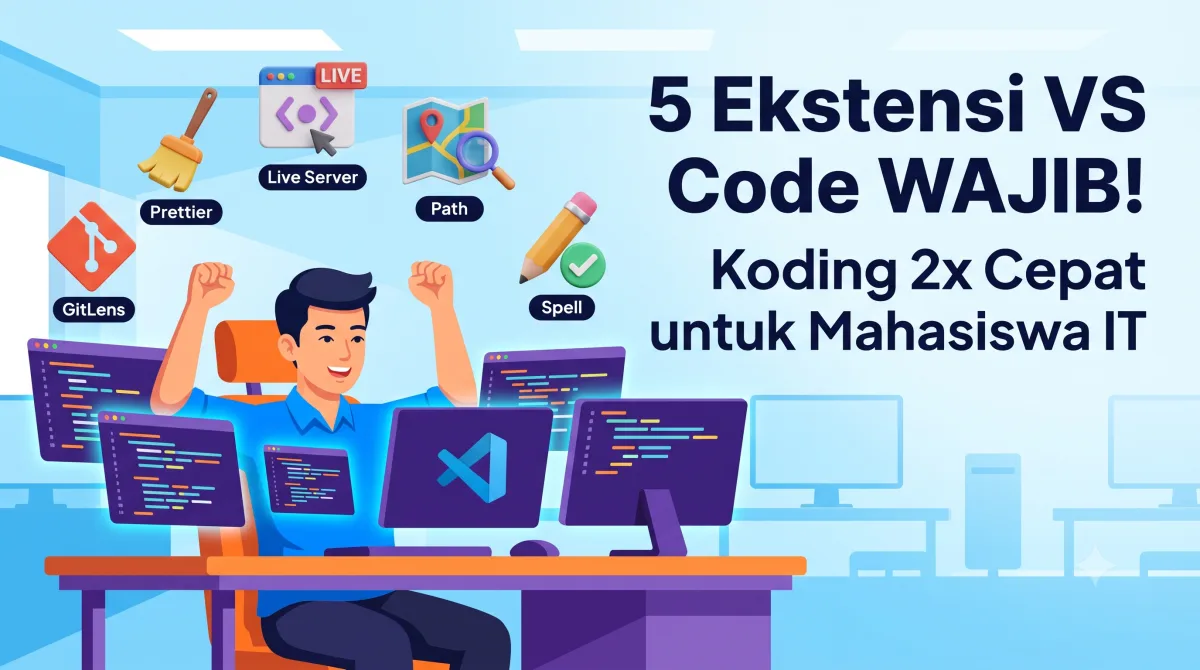
If so, you’ve come to the right place! Today, we’re going to talk about a small secret with a huge impact: VS Code extensions. Believe it or not, with a few right extensions, you can make your coding workflow far more efficient—in fact, here are the 5 Must-Have VS Code Extensions for IT Students to Code 2x Faster. Let’s dive into these magic extensions one by one!
ℹ️ Did You Know? Visual Studio Code has over 40,000 extensions in its Marketplace! This shows just how flexible and powerful the platform is to adapt to every developer's needs. Out of all those options, we’ve picked the most essential ones for you!
1. Prettier - Code Formatter: Clean Code Automatically, Drama-Free!
Have you or your friends ever argued over different code formatting styles? Some use two spaces, others use four. Some place curly braces on a new line, while others don't. Well, Prettier is here as your superhero savior! It’s an extension that automatically cleans up and formats your code according to established standards.
The benefit? Your code stays consistent, easy to read, and looks far more professional. Imagine working on a group project where all the code is neatly aligned in the exact same format—reviewing it would be a breeze, right?
-
Pros:
-
Supports many programming languages (JavaScript, TypeScript, CSS, HTML, JSON, etc.).
-
Easy to configure and customizable to team or individual preferences.
-
Can be set to format automatically when you save a file (Format On Save).
-
-
Cons:
-
Some people might need time to adjust because its formatting style can feel "opinionated."
-
For older projects that are already messy, the initial formatting process can result in large diffs.
-
-
Usage Scenario:
Prettier is a absolute must-install for every project, whether personal or team-based. It serves as the foundation for clean code that will help you immensely in the long run.
ℹ️ Did You Know? Consistency in code formatting not only improves readability, but also reduces the likelihood of bugs caused by syntax errors or differing interpretations among team members.
2. Live Server: Lightning-Fast Frontend Debugging!
For those who frequently tinker with frontend development (HTML, CSS, JavaScript), you’re probably used to the fatigue of constantly saving files and manually refreshing your browser. Tiring, isn't it? Live Server is the extension to save your life!
Live Server spins up a small local server on your computer and automatically reloads the web page in your browser every time you save changes in VS Code. This means you can see your code results instantly without ever clicking the refresh button again!
-
Pros:
-
Automatically reloads browser pages whenever files are modified.
-
Extremely easy to use—just right-click an HTML file and select "Open with Live Server".
-
Lightweight and doesn't strain your system.
-
Ideal for static HTML, CSS, and JavaScript projects.
-
-
Cons:
-
Works optimally only for static or client-side frontend development.
-
Not suitable for complex backend projects or those requiring custom server configurations.
-
-
Usage Scenario:
When you’re working on HTML/CSS exercises, building landing pages, or developing UIs with plain JavaScript, Live Server will be your best friend. Debugging and previewing changes becomes super fast!
3. Path Intellisense: Bye-Bye File Path Typos!
How often do you mistype file paths when importing components, images, or stylesheets? For instance, writing ./sr/componen/Button.jsx instead of ./src/components/Button.jsx. This trivial mistake often leads to headaches, especially when your project folder structure gets complex.
Path Intellisense is an extension that provides auto-completion recommendations for file and folder paths. You no longer need to memorize or manually type paths. Just type the first few letters, then select from the suggested list.
-
Pros:
-
Saves a ton of time and reduces path typos.
-
Highly accurate and responsive.
-
Supports various file types and project structures.
-
-
Cons:
-
In massive projects with thousands of files, the suggestion list can sometimes get long and require filtering.
-
Doesn't require complex configuration, but works exceptionally well by default.
-
-
Usage Scenario:
This extension is extremely useful across all project types, especially those with deep folder structures and many interconnected files. From web projects to desktop apps, Path Intellisense is a lifesaver.
4. GitLens — Git Supercharged: Dive Into Code History with Ease
As an IT student, you're likely familiar with Git and GitHub. Version control is fundamental! However, viewing commit histories, identifying who wrote a specific line of code, or comparing versions can be tedious if done solely through the terminal.
GitLens brings the full power of Git directly into your VS Code editor. You can see who last modified a specific line of code (known as "Git Blame"), visually inspect commit history, compare branches, and much more—all without leaving your editor.
-
Pros:
-
Displays Git information inline (next to your code), such as the author and last modification date.
-
Intuitive and visual commit history navigation.
-
Powerful file and branch comparison features.
-
Enhances team collaboration through a better understanding of code context.
-
-
Cons:
-
Packed with feature choices, its UI can feel a bit overwhelming for beginners.
-
Requires a basic understanding of Git to fully utilize all features.
-
-
Usage Scenario:
GitLens is a must-have extension for group projects or personal projects using Git for version control. It makes understanding code and collaborating significantly smoother.
ℹ️ Did You Know? Git isn't just a tool for saving code versions; it is also a foundational element for modern DevOps practices. Mastering it means taking a step forward in the professional world!
5. Code Spell Checker: Keep Your Code and Comments Typo-Free!
When writing code, we don't just write syntax; we also name variables, functions, strings, and most importantly: comments! Typos in these areas can make code hard to read or even introduce weird bugs. If a typo happens in an important variable name, it can cause endless frustration.
Code Spell Checker is a simple yet powerful extension that checks spelling within your code, comments, and strings. It helps you maintain code quality and professionalism.
-
Pros:
-
Supports multiple programming and natural languages.
-
Customizable by adding words to a personal dictionary (e.g., technical terms that aren't standard English).
-
Helps maintain consistent naming conventions and clear code documentation.
-
-
Cons:
-
Occasionally flags technical jargon or acronyms as errors, though these can easily be added to your dictionary.
-
Focuses solely on spell-checking, not deep syntax analysis.
-
-
Usage Scenario:
Suitable for every project and programming language. Whenever you write code involving text (variables, strings, comments), Code Spell Checker will be your reliable assistant.
Summary of Features and Key Benefits
To make things easy to digest, here is a summary table of these five supercharged extensions:
| Extension Name | Main Function | Key Benefits | Considerations / Notes |
| Prettier | Automatic code formatting | Code consistency, multi-language support, format-on-save | Requires adaptation to formatting style; highly configurable |
| Live Server | Local server with auto-reload | Instant frontend previews, saves refresh time | Ideal for static frontends, not complex backends |
| Path Intellisense | File/folder path auto-completion | Reduces path typos, fast file navigation, accurate | Suggestion list can be long in large projects |
| GitLens | Deep Git integration in VS Code | View commit history, blames, visual code comparisons | UI can be complex for beginners; basic Git knowledge required |
| Code Spell Checker | Spell checker for code and comments | Avoid typos, boost professionalism, custom dictionary | May flag technical terms (can be ignored or added to dictionary) |
Practical Analysis: How These Extensions Transform Your Coding Workflow
Picture this: You start writing code, and Code Spell Checker instantly catches any typos. As you import a file path, Path Intellisense offers the exact suggestion you need. Once you finish writing, Prettier automatically cleans up your code as soon as you save. If it's a web project, Live Server immediately updates the results in your browser without requiring a manual refresh. Throughout the process, GitLens helps you track changes and collaborate seamlessly with your team.
All these extensions work in harmony to create a smooth and efficient workflow. You get to focus on your code logic rather than getting bogged down by repetitive or error-prone details. That’s what we mean by "coding 2x faster"!
Conclusion: Become a Productive IT Student Right from the Start!
So, AnakInformatika friends, those are the 5 must-install VS Code extensions that can make your coding experience as an IT student far more enjoyable and productive. Mastering your toolkit is half the battle. With these extensions, you won't just code faster—you'll also produce cleaner, bug-free, and maintainable code.
Don't hesitate to test them out and explore. Every extension offers settings you can customize to your liking. Remember, investing a little time to learn new tools yields massive returns in your future productivity!
What do you think? Are there any other extensions you consider essential for IT students? Share your thoughts in the comments section below!